If you surf Facebook on daily basis or occasionally, chances are you’re already familiar with regular stuffs like add/delete friends, update statuses, walls and profile, add and explore pages & applications, etc, but there’s more..
This week we want to cover some interesting things you can do on (or with) Facebook; inclusive of tricks that are not documented or unknown to many, as well as tips to stay connected better with your friends. Without further ado, here’s 20 Facebook Tips/Tricks You Might Not Know. If you have interesting tips/tricks related to Facebook, please feel free to share in the comment box below.
1.How To Place Facebook Chat On Firefox Sidebar
Facebook Chat is cool, at least it allows you to send instant messages to online Facebook contacts. However I’m not really a fan of the chat bar being at the bottom of the page, what if I’ve left Facebook but still wants to remain chatting with my Facebook contacts? If you are using Firefox, you can place the Facebook Chat at the sidebar.
Step - 1
Look for Bookmarks on the top navigation. Select Organize Bookmarks…
Step - 2
Click New Bookmark... tab and enter the following:
Name: Facebook Chat
Location: http://www.facebook.com/presence/popout.php
Check Load this bookmark in sidebar.
Step - 3
Launch the Firefox sidebar, click Facebook Chat and start chatting with your Facebook contacts within Firefox.
2.How To "Friend" Someone On Facebook & Hide It From Your Status Updates
I’m sure that this has happened to you before. Someone you have ties to, whether it’s a co-worker, your boss, or even worse, a parent, has finally discovered social networking and wants to be your newest Facebook friend.
For me personally, that’s no big deal. I’m fairly open about my online activities. Everything I write, Digg, or otherwise share goes through my FriendFeed to my Twitter then ultimately onto my Facebook (my, that sounds naughty). Besides that, just about everyone I’d consider a co-worker is already on Facebook, and would have little issue about my other Internet activities.
Putting all that aside however, imagine for a moment that I worked at Domino’s Pizza and that I don’t want my boss to know that I just became a fan of Papa John’s (writing this one’s gonna make me hungry). Here’s what I would do to hide Facebook status updates and keep that fact confined to my closer friends:
On your Facebook home page, you should see the ‘Settings’ menu close to the search field on your upper-right. Open that menu and go to ‘Privacy Settings’.

On the next page, you’ll have four choices: Profile, Search, News Feed, and Applications. What you’ll want to edit here are your Profile privacy settings.
By default, everything on your profile is limited to your Friends and your Networks (your first Network is likely your city of residence, but you may have joined more). From the screenshot above, you can see that I’ve limited everything on my profile to my Friends and their Friends. Anyone else who visits my profile will only see that I have a profile, but will not see what’s on it.
In my example, you’re going to want to edit the setting on your Status Updates, since you don’t want your boss to know that you’ve “fanned” the competition. Click that dropdown menu and then select ‘Customize’.
You may want to tweak your overall privacy setting here, but what we’re aiming for is the “Except These People” list at the bottom of this dialog. Type out the name of any of your Friends to restrict that person from viewing anything in your Status Updates.
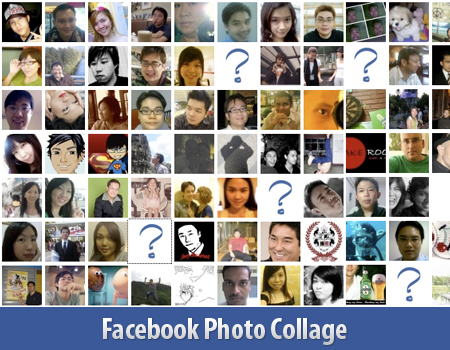
3.Create Photo Collage/Grid-View Of Your Facebook Friends
Here’s a small little trick in Facebook that allows you to create a grid view or photo collage out of your friends list. This is how I do it:
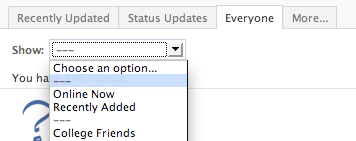
1. Click on Friends tab.
2. Proceed to More tab.
3. From "Choose an option" drop down, choose any of the dashes "—"
Photos of all your friends will be displayed, each in 50×50 pixels forming a grid view. Have fun.